Devices
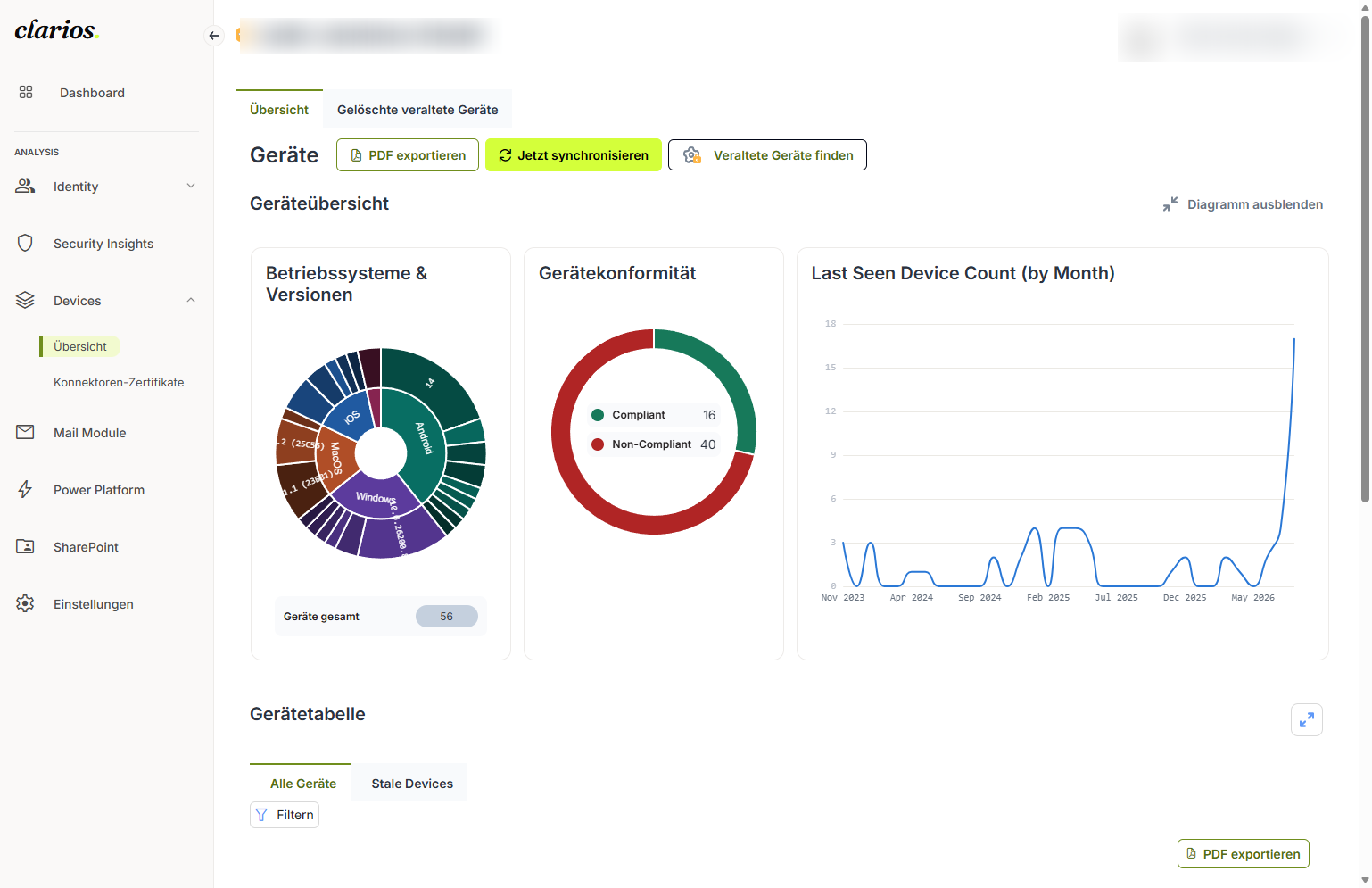
The Devices area shows all the devices in your Microsoft 365 environment in one place, with charts of your device landscape and a searchable table. So you can quickly see which devices you have and how they’re doing.
At the top there are two tabs: Overview with the active devices, and Deleted outdated devices with the devices removed during cleanup.
👤 To view this you only need the Reader permission level. Individual actions need more rights. That’s noted on each page.
What can you do here?
- Search and filter devices: find what you need in the device table and save the result as a PDF.
- Find devices that haven’t checked in for a while: track down those devices and, if you like, have them cleaned up automatically.
- View BitLocker keys and LAPS passwords: see a device’s sensitive credentials (Admins only).
- View removed devices: keep track of which devices were cleaned up.
Good to know
- The charts are clickable: clicking a slice in OS & Versions or Device Compliance filters the table straight to that value.
- Use Hide the Chart / Expand The Chart to collapse or show the charts.
- Use the sync button to refresh the device data from your Microsoft 365 environment.