Mail Security
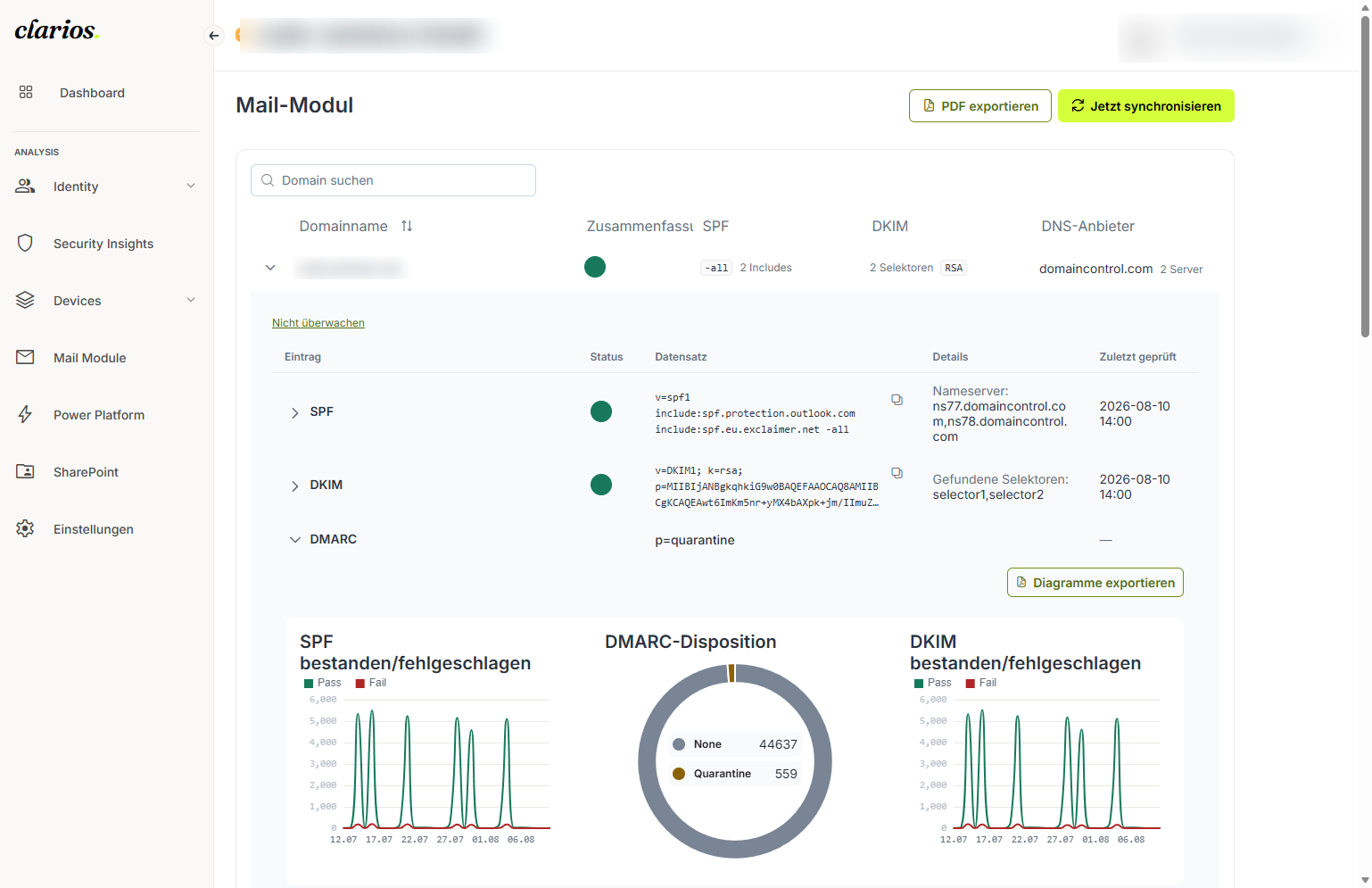
This is where you see how well your email domains are protected against someone sending email in your name. Clarios lists your domains and shows a simple traffic light for each. Green is good, yellow is a warning, and red means there is something you should fix.
Behind the scenes, three email-protection standards work together to stop others faking your sender address: SPF, DKIM and DMARC. You don’t need to memorise the names. Clarios shows you the status in colours.
ℹ️ Note: This page is read-only. You don’t need any special permissions to view it.
What can you do here?
- Look at your domains. The Domains section shows each domain with a coloured status. Use the Search Domain box to find a specific domain faster.
- Look inside a domain. Click a domain to expand it. Inside are three areas (the SPF, DKIM and DMARC buttons) showing details and small check tables (Validation Table).
- View DMARC reports. In a domain’s DMARC area you’ll find three charts (SPF Pass/Fail, DMARC Disposition, DKIM Pass/Fail) and, below them, a table of the individual reports. Until any reports arrive, it shows No Data.
- Set up DMARC reports. To get those charts to fill, add your personal report address to your DNS once. See Set up DMARC report forwarding.
- Save as PDF or refresh. Top-right: Export PDF turns the mail dashboard into a PDF, and Sync fetches the latest data.
Good to know
- The coloured dots are a traffic light: green = check passed, yellow = warning, red = an issue that should be addressed.
- If a domain has no DMARC data yet, you’ll see a warning icon and the message “No DMARC data available for this domain.” That’s normal until the first reports come in.