Security Insights
Security Insights is a security check: Clarios compares the settings of your Microsoft 365 environment against trusted recommendations (best practice) and shows you at a glance what matches and what needs attention. You get a percentage and a list of individual checks with their result.
👤 Anyone can view. Changing something, such as setting an exemption or fixing a check with Fix, needs Writer or Admin rights.
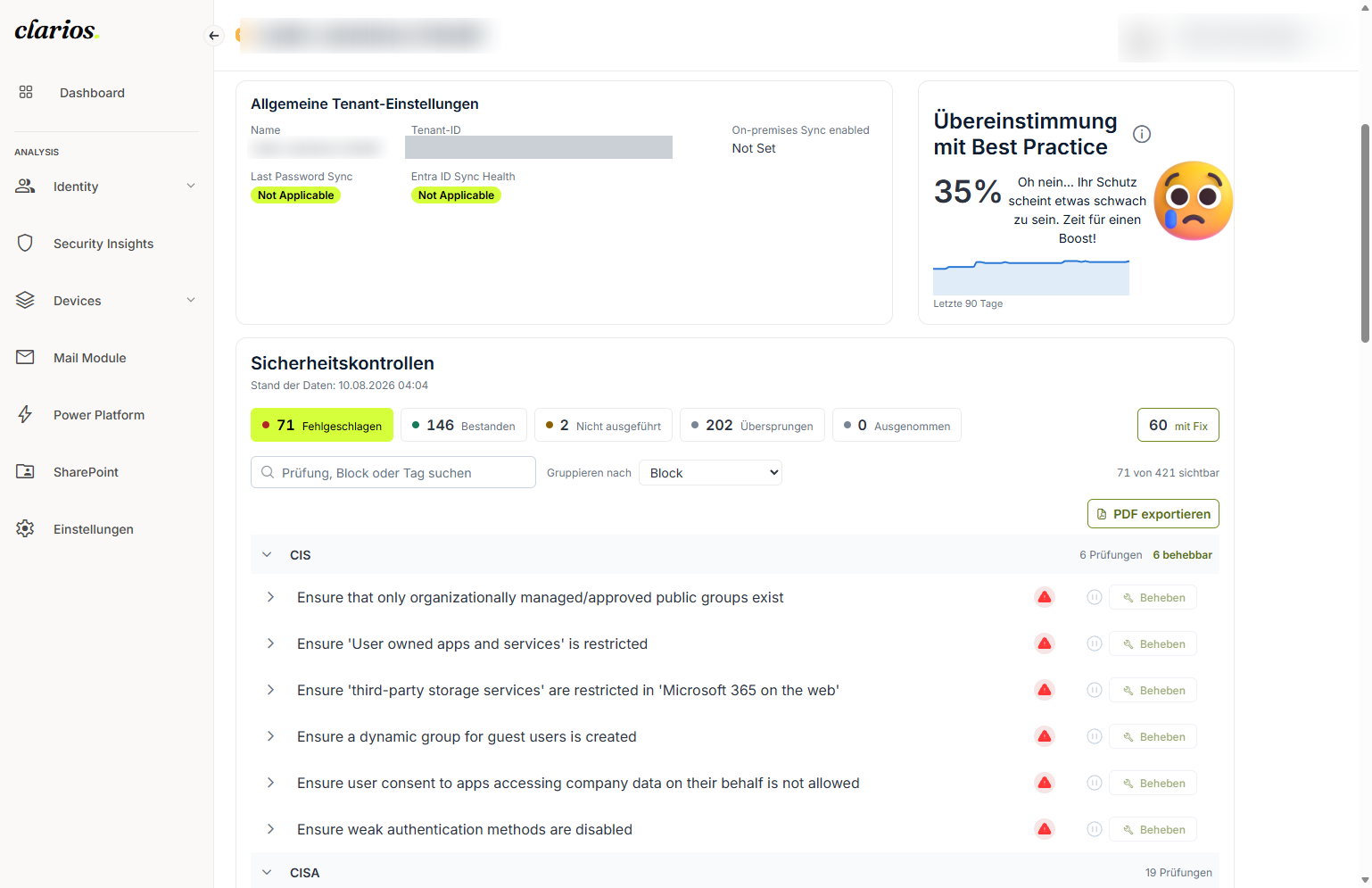
What you see here
- General Tenant settings (top left): key facts about your environment, such as Name and Tenant ID. Values that deviate are highlighted.
- Matching Best Practice (top right): the percentage of how well your settings match best practice, with a medal for the level reached.
- Security Controls: the list of all individual checks with their result. Above the list, Data as of shows when it was last checked.
ℹ️ Note: A check you’ve set an exemption for does not count toward the Matching Best Practice score (“This score only includes Maester Test checks without exemptions.”).
What does a check’s result mean?
Each check has a status:
| Status | Meaning |
|---|---|
| Passed | All good; the setting matches the recommendation. |
| Failed | There’s something to do here. |
| Skipped | Skipped, e.g. because something else is missing. |
| NotRun | Not checked yet. |
| Exempt | You set an exemption, so it doesn’t count against you. |
What can you do here?
- Review controls: browse the list and open a check in detail.
- Manage exemptions: intentionally skip a check, or remove the exemption again.
- Fix a security issue: have a failing check corrected with Fix.
Refresh the data (Sync now)
Click Sync now at the top right to check again. This only reads your data and changes nothing in your environment, so anyone can do it. Right after, the button is briefly locked and shows Next sync in {time}.
💡 Tip: To share the result, click Export PDF at the top right. Ideally do this right after a Sync now so the Data as of timestamp is current. For the exact steps, see Create a PDF report.